Blog

  • [:en]IPTV multicast or unicast? Which is the best?[:]

    [:en]IPTV multicast or unicast? Which is the best?[:]

    [:en]

    As of 2023, more and more Swedish consumers receive TV via internet (some sort of IP network). Traditional DVB-C, DVB-S and DVB-T(2) are disappearing. However, not all IPTV delivery is equal. I have some experience with Telenor and Telia as a supplier and these are some tips to get the best out of your IPTV service or some tips when ordering a new service.

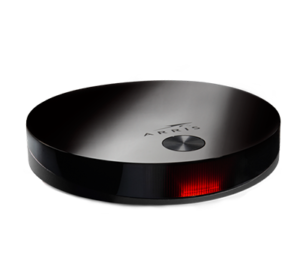
    Telia multicast IPTV-box Arris VIP 4302 (original source)
    Telia unicast IPTV-box SDMC DV8919X (original source)

    Unicast vs multicast IPTV delivery

    In the past, IPTV was delivered via a separate multicast network. This means IPTV traffic is separated from regular internet traffic in a VLAN (similar to internet-telephone/VoIP traffic). This also means all network equipment in the distribution infrastructure up to consumer’s IPTV-box should be VLAN aware (and should support multicast). Another advantage is a unicast IPTV-box works anywhere where there is sufficiently fast internet (at your friend’s house or summer cottage for example)

    More ISPs now by default only provide unicast IPTV service. Because it’s a unicast service, it’s easier to manage. There’re no additional network equipment (such as a VLAN separated switch (tjänstefördelare) needed. Since unicast traffic traverse through the NAT of consumer’s router a unicast IPTV-box can be connected like any other device (most often wireless). However there are remarkable disadvantageous in existing unicast IPTV services such as:

    • There is a considerable delay in delivery (usually around 30 seconds). Do not watch football via unicast IPTV :-)
    • Picture quality is poor (this is my personal experience in both Telenor and Telia’s implementation of unicast IPTV). However I don’t think it’s a technical limitation, but rather poor implementation.
    • Most often there’s no 5.1 dolby-digital audio via unicast IPTV
    • Since unicast IPTV is regular internet traffic, it counts against your internet quota

    Final thoughts

    • If you have a choice, always make sure to choose a multicast IPTV (don’t get deceived by the fancy IPTV box running Android TV with a boatload of apps such as SDMC DV8919X from Telia or Telenor’s “Media Hub”).
    • One might choose a unicast IPTV service because of it’s simplicity or limitations of ISP provided router’s etc. But configuring a VLAN aware switch (or a router running open-source firmware) to receive multicast IPTV traffic is not that complicated. It’s just finding out the correct VLAN-ID. See the following links for more info.
    • The TV-app by Telia is actually very good (and to some extent apps from other providers such as Telenor or Tele2 are also getting better). These can always be used when travelling or in another room instead of a unicast IPTV-box.
    • However for some consumers, perhaps unicast IPTV is the only available solution because ISPs have stopped providing multicast- IPTV

    Useful links

    [:]
  • [:en]Install BubbleUPnP Server – Ubuntu 16.04 headless [:]

    [:en]This is how the BubbleUPnP Server could be installed in Ubuntu 16.04 server running headless.

    First install a headless version of JRE (because the normal JRE has many graphical dependencies, it is advisable to install a headless version).

    $sudo apt install default-jre-headless

    The latest OpenJDK JRE headless version will be installed.

    Then we can follow the instructions in BubbleUPnP website to install the server. The steps are adding the ppa to apt repository and installing the server via apt-get.

     $sudo add-apt-repository ppa:bubbleguuum/bubbleupnpserver
     $sudo apt update
     $sudo apt install bubbleupnpserver
    

    The post installations scripts pulls jar files from BubbleUPnP website and also pulls a statically linked ffmpeg. It also installs a systemd unit '/lib/systemd/system/bubbleupnpserver.service'. Unfortunately this systemd service ignores any user preferences set in '/etc/default/bubbleupnpserver'. Therefore we have to override the default settings in '/lib/systemd/system/bubbleupnpserver.service'. The systemctl command invoked with edit directive opens the override.conf file /lib/systemd/system/bubbleupnpserver.service.d/override.conf in the default editor.

     $sudo systemctl edit bubbleupnpserver.service
    

    Add the following lines to above file :

    [code lang=”bash”]

    [Service]

    # Change the user and group BubbleUPnP server should run_as and change the data directory.
    # First clear the ExecStart with an empty directive; otherwise systemctl does not load the unit
    ExecStart=
    ExecStart=/usr/share/bubbleupnpserver/launch.sh -dataDir /home/new_user/.bubbleupnpserver -httpPort 58050 -httpsPort 58051 -nologstdout

    User=new_user
    Group=new_user

    [/code]

    Then reload,test and start the BubbleUPnp systemd service.

     $sudo systemctl daemon-reload
     # In order to see whether overrides are properly loaded
     $sudo systemctl cat bubbleupnpserver.service
     # start the server
     $sudo systemctl start bubbleupnpserver.service
    

    Point your browser to http://server_ip:58050/ for additional configuration of the server. We don’t have to change anything for future BubbleUPnP updates, because the default configuration is overridden.[:]

  • [:en]Ubuntu home server headless – Boot non-interactively[:]

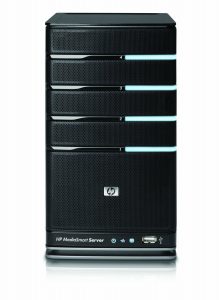
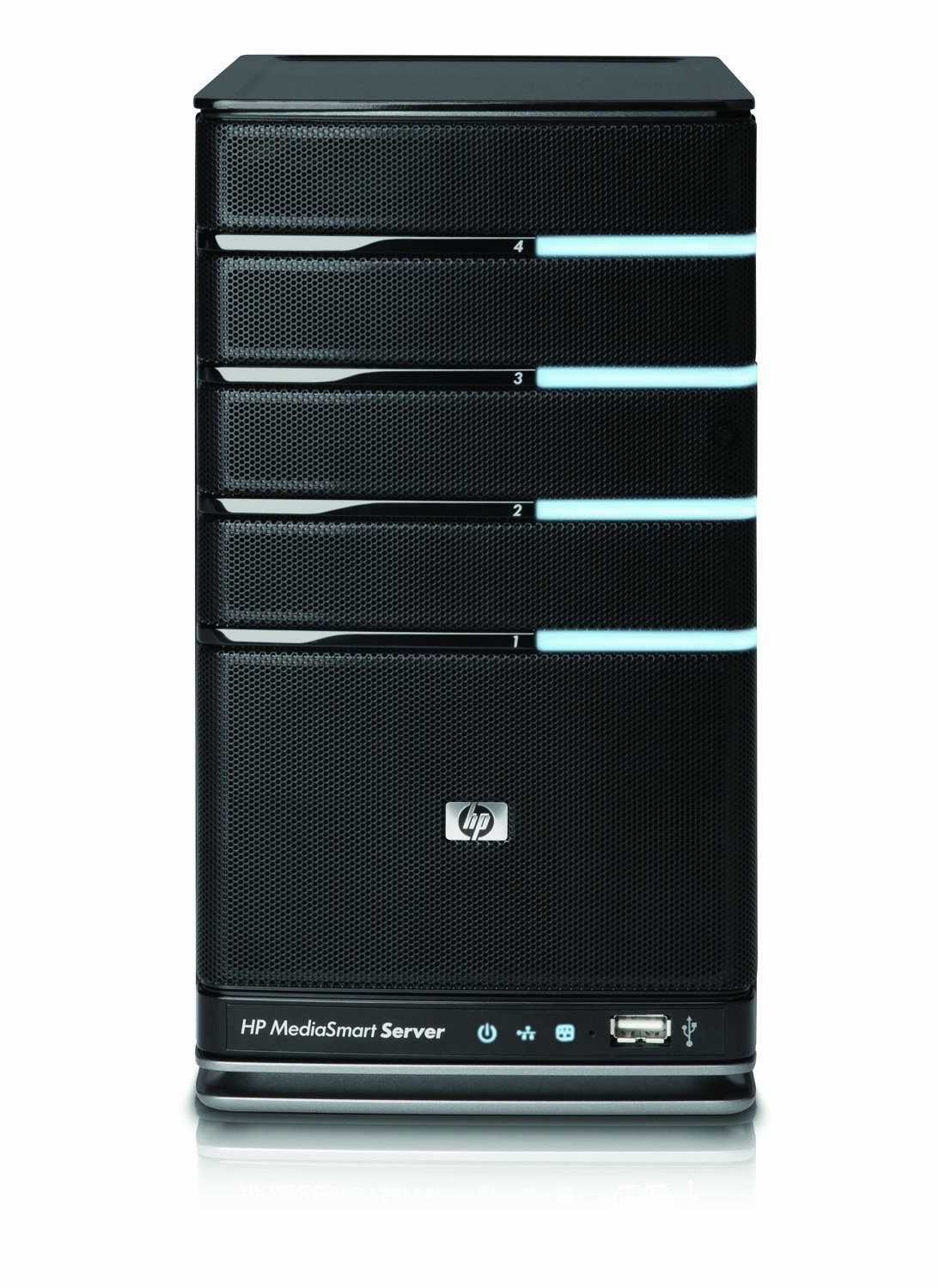
    [:en]Running a server completely headless is fine as long as the server boots and remote access is available (via ssh, rdp, vnc or similar). I have a HP mediasmart EX490 server which has no VGA output (though it is possible to get a VGA/PS2 connection with a debug cable). These are some tips for running the EX490 completely headless with Ubuntu.

    (more…)

  • [:en]HP EX490 MediaSmart server: Using a 6TB GPT boot drive in Ubuntu with a non EFI BIOS! [:]

    [:en]HP EX490 MediaSmart server: Using a 6TB GPT boot drive in Ubuntu with a non EFI BIOS! [:]

    [:en]HP EX490/EX495 MediaSmart servers were at one time very popular option for a home server. These 4-bay home servers came with Microsoft Windows Home Server V1 as the operating system. It was a very small (even smaller than the newer Gen8 ProLiant Microserver) yet feature rich home server. I bought mine in 2011. This post is about some history of the upgrade path of my EX490 and a recent update to a 6TB GPT boot disk.

    EX490

    (more…)

  • Migrating Ubuntu server from Amazon EC2 to DigitalOcean

    Recently I migrated my blogs from AWS EC2 micro instance to a DigitalOcean 512MB VPS. Migration was surprisingly easy. All I had to do was sync everything from EC2 instance to DigitalOcean VPS using rsync provided I use Ubuntu 12.04 LTS server on both locations. This is what I did step-by-step.

    Recently I migrated my blogs from AWS EC2 micro instance to a DigitalOcean 512MB VPS. Migration was surprisingly easy. All I had to do was sync everything from EC2 instance to DigitalOcean VPS using rsync provided I use Ubuntu 12.04 LTS server on both locations. This is what I did step-by-step.

    Create a DititalOcean dropplet with similar OS and version as the EC2 instance (in my case Ubuntu 12.04 LTS 32bit with LAMP stack pre-installed) (more…)

  • Using Eigen Linear Algebra Library with Visual C++ 2010 Express 64bit

    Using Eigen Linear Algebra Library with Visual C++ 2010 Express 64bit

    [:en]Eigen is a free and open source, relatively fast, very versatile linear algebra library written completely in C++ templates. It is very fast and in some cases produces code as fast as commercial implementations like Intel MKL, AMD ACML etc. The beauty of the Eigen is, it’s completely written in C++ templates and it’s very easy to plug it in to a project compiled with any supported compiler.

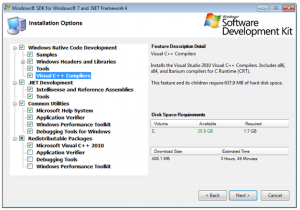
    Here I describe the process of how to install Eigen with Microsoft Visual Studio 2010 Express and 64bit compilers from Microsoft Windows SDK 7.1 supporting OpenMP and vectorization with SSE2.  All these tools are free.

    (more…)